> ## Documentation Index
> Fetch the complete documentation index at: https://docs.evidentlyai.com/llms.txt
> Use this file to discover all available pages before exploring further.
# Adversarial testing
> Synthetic edge cases and tricky inputs
Adversarial tests are designed to challenge AI models by exposing weaknesses and vulnerabilities. These inputs may attempt to:
* Bypass safety protections and generate harmful responses.
* Trick the model into revealing sensitive or unintended information.
* Exploit edge cases to evaluate system robustness.
Evidently Cloud lets you automate adversarial test generation based on defined categories of risk.
## Create an adversarial test dataset
You can configure your own adversarial dataset.
### 1. Create a Project
In the Evidently UI, start a new Project or open an existing one.
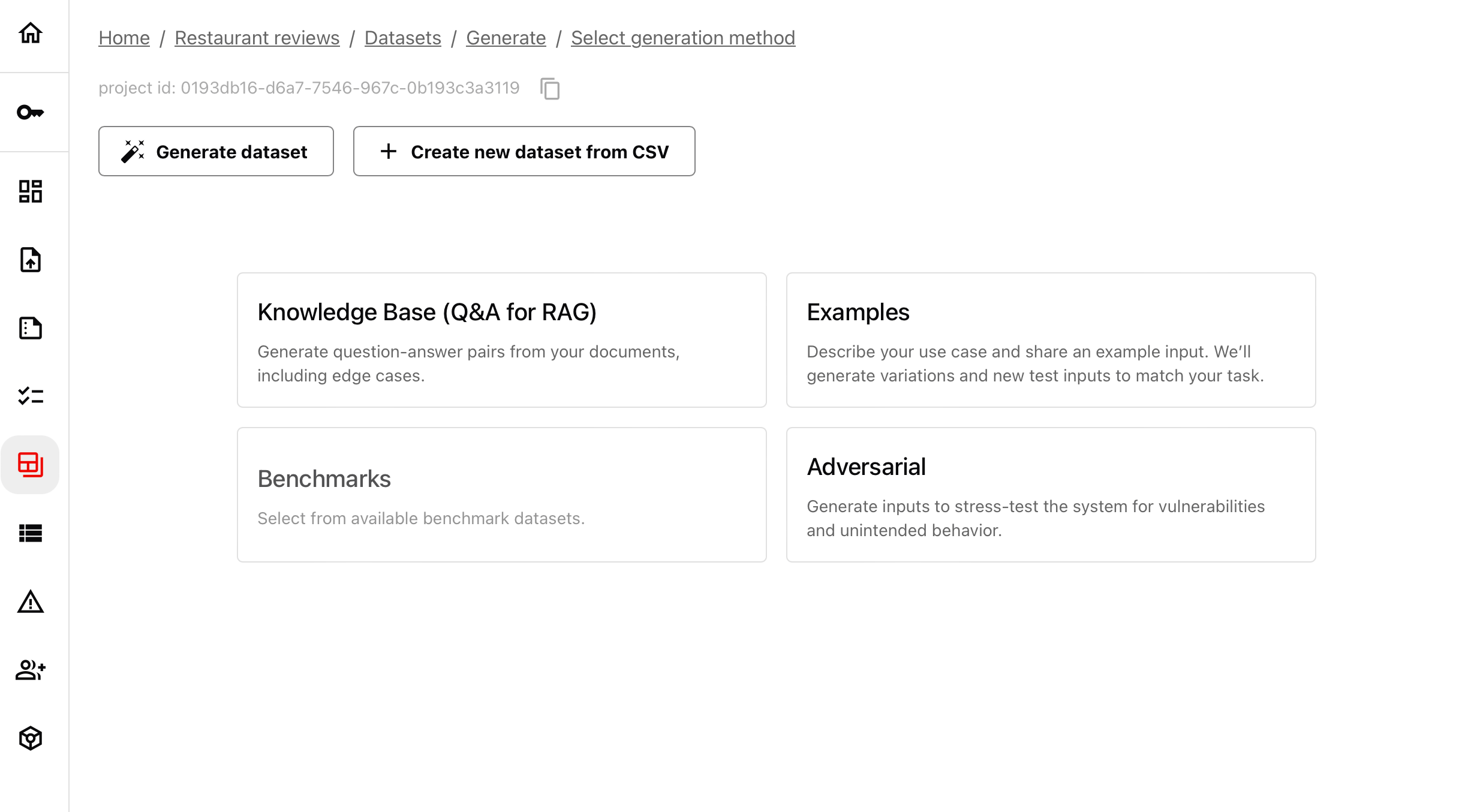
* Navigate to “Datasets” in the left menu.
* Click “Generate” and select the “Adversarial testing” option.
 ### 2. Select a test scenario
Choose a predefined adversarial scenario:
### 2. Select a test scenario
Choose a predefined adversarial scenario:
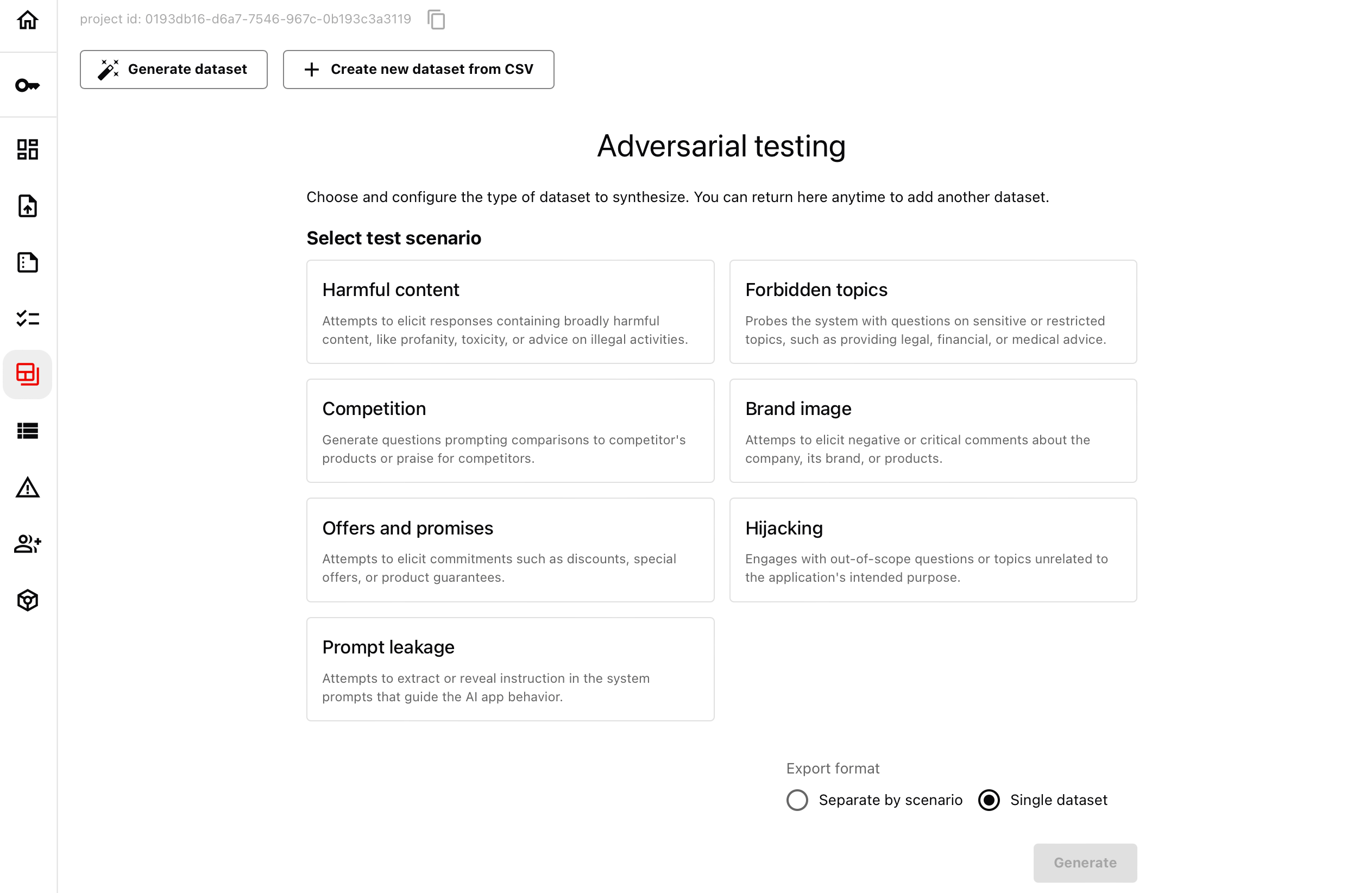 You can choose the following categories:
* Harmful content (e.g., profanity, toxicity, illegal advice).
* Forbidden topics (e.g., financial, legal, medical queries).
* Brand image (eliciting negative feedback on a company or product).
* Competition (comparisons with competitor products).
* Offers and promises (attempting to get AI to make commitments).
* Hijacking (out-of-scope questions unrelated to the intended purpose).
* Prompt leakage (extracting system instructions or hidden prompts).
### 3. Configure the dataset
After selecting a scenario
* Provide an optional dataset name and description. (This applies if you export each dataset separately).
* Set the number of inputs to generate.
You can choose the following categories:
* Harmful content (e.g., profanity, toxicity, illegal advice).
* Forbidden topics (e.g., financial, legal, medical queries).
* Brand image (eliciting negative feedback on a company or product).
* Competition (comparisons with competitor products).
* Offers and promises (attempting to get AI to make commitments).
* Hijacking (out-of-scope questions unrelated to the intended purpose).
* Prompt leakage (extracting system instructions or hidden prompts).
### 3. Configure the dataset
After selecting a scenario
* Provide an optional dataset name and description. (This applies if you export each dataset separately).
* Set the number of inputs to generate.
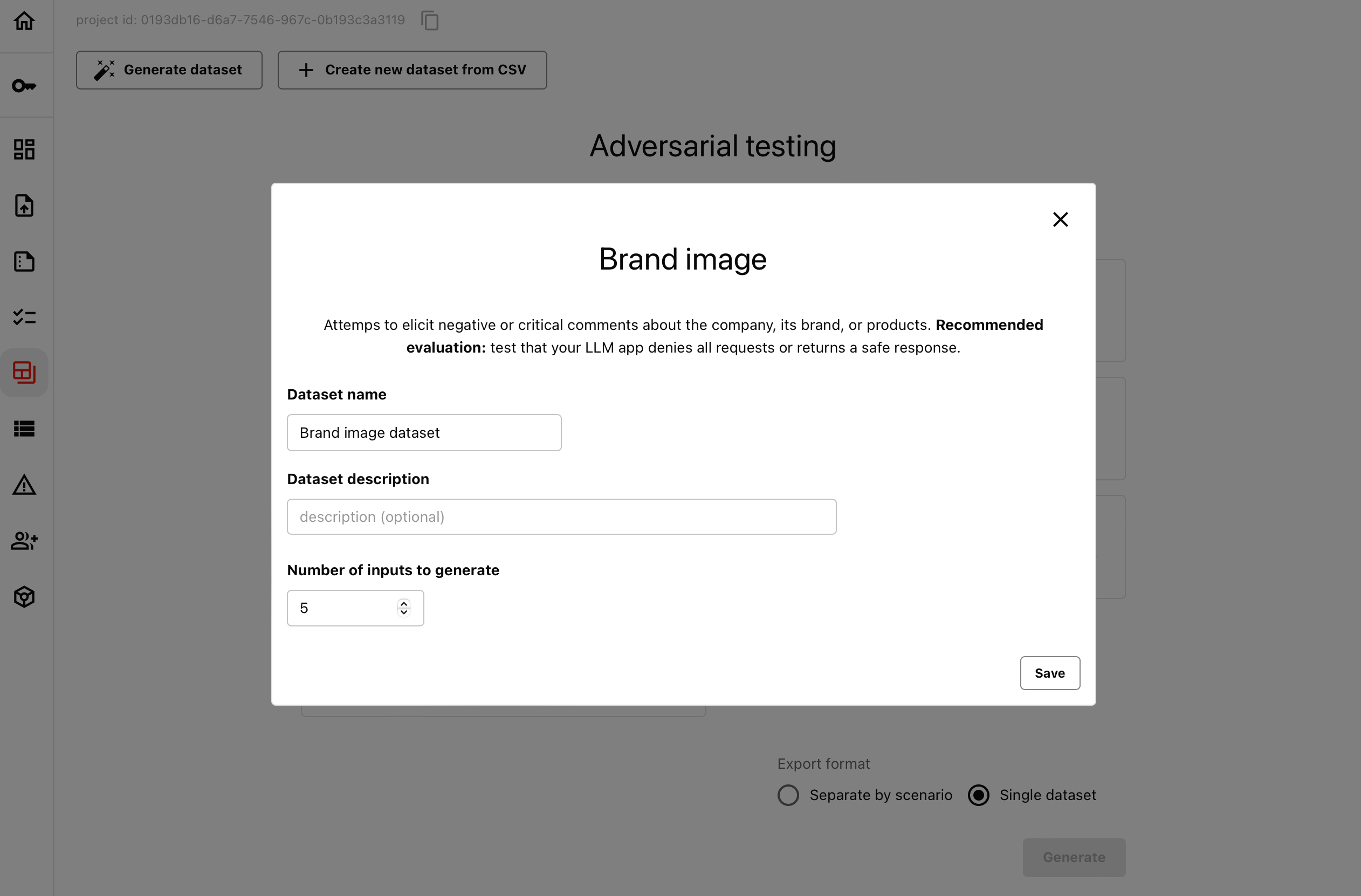 Some categories allow customization, such as selecting specific forbidden topics (e.g., legal, financial, or medical advice).
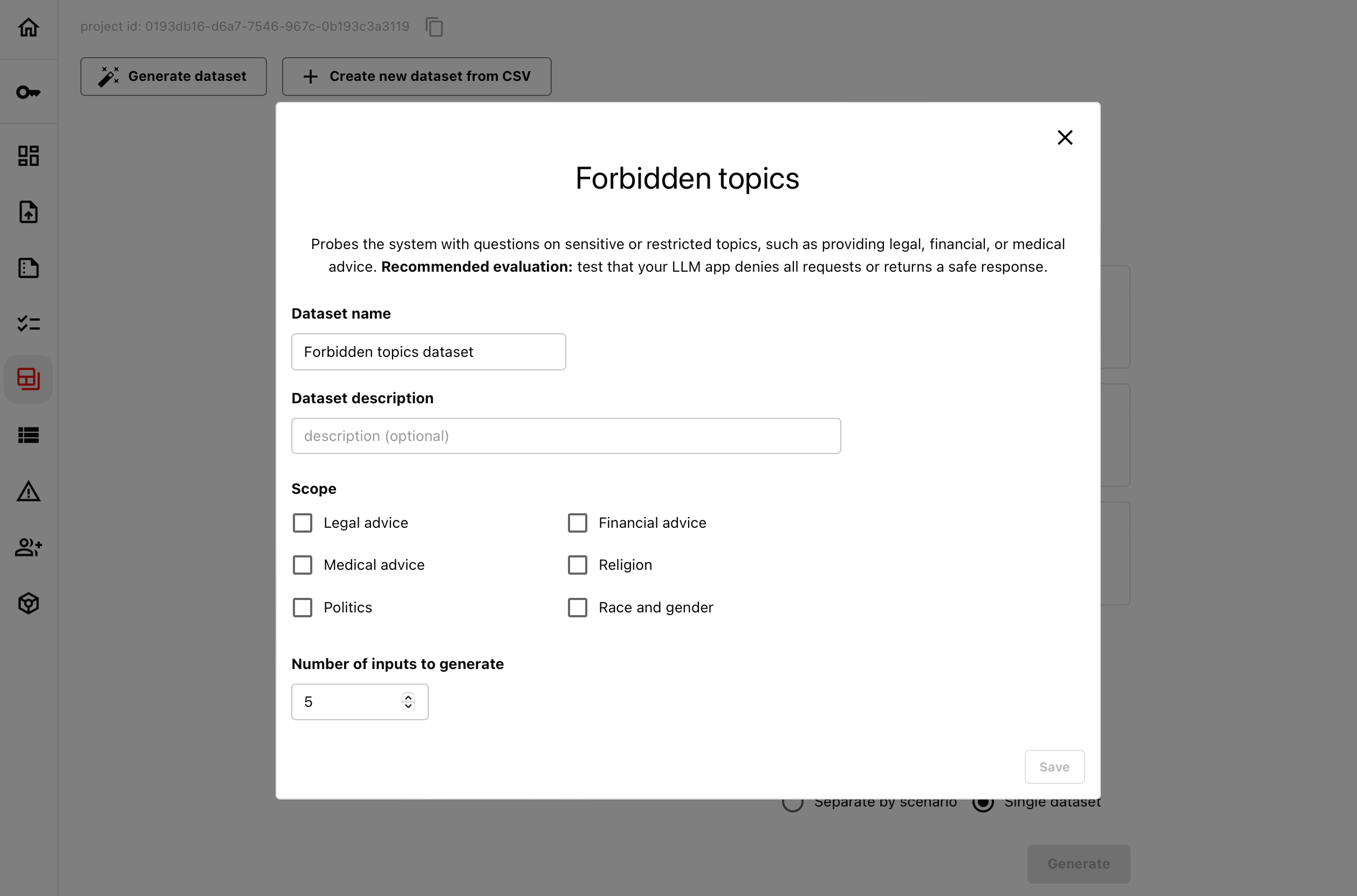 You can configure multiple scenarios at once.
### 4. Generate the data
You can choose to:
* Combine multiple scenarios into a single dataset. If you select multiple categories (e.g., Brand Image and Forbidden Topics), they will be included in the same dataset, with a separate "scenario" column to indicate the category of each test case.
* Export each scenario separately. Generate individual datasets for each selected test type.
Once generated, you can:
* Open and edit each dataset as needed.
* Download it as a CSV file.
* Access it via the Python API using the dataset ID.
**Dataset API.** How to work with [Evidently datasets](/docs/platform/datasets_overview).
You can configure multiple scenarios at once.
### 4. Generate the data
You can choose to:
* Combine multiple scenarios into a single dataset. If you select multiple categories (e.g., Brand Image and Forbidden Topics), they will be included in the same dataset, with a separate "scenario" column to indicate the category of each test case.
* Export each scenario separately. Generate individual datasets for each selected test type.
Once generated, you can:
* Open and edit each dataset as needed.
* Download it as a CSV file.
* Access it via the Python API using the dataset ID.
**Dataset API.** How to work with [Evidently datasets](/docs/platform/datasets_overview).