> ## Documentation Index
> Fetch the complete documentation index at: https://docs.evidentlyai.com/llms.txt
> Use this file to discover all available pages before exploring further.
# Run evals via API
> How to run evals and log them on the platform
 This relies on the core evaluation API of the Evidently Python library. Check the [detailed guide](/docs/library/evaluations_overview).
## Simple Example
You must first connect to [Evidently Cloud](/docs/setup/cloud) and [create a Project](/docs/platform/projects_manage).
To run a single eval with text evaluation results uploaded to a workspace:
```python theme={null}
eval_data = Dataset.from_pandas(
source_df,
data_definition=DataDefinition()
)
report = Report([
TextEvals()
])
my_eval = report.run(eval_data, None)
ws.add_run(project.id, my_eval, include_data=True)
```
## Workflow
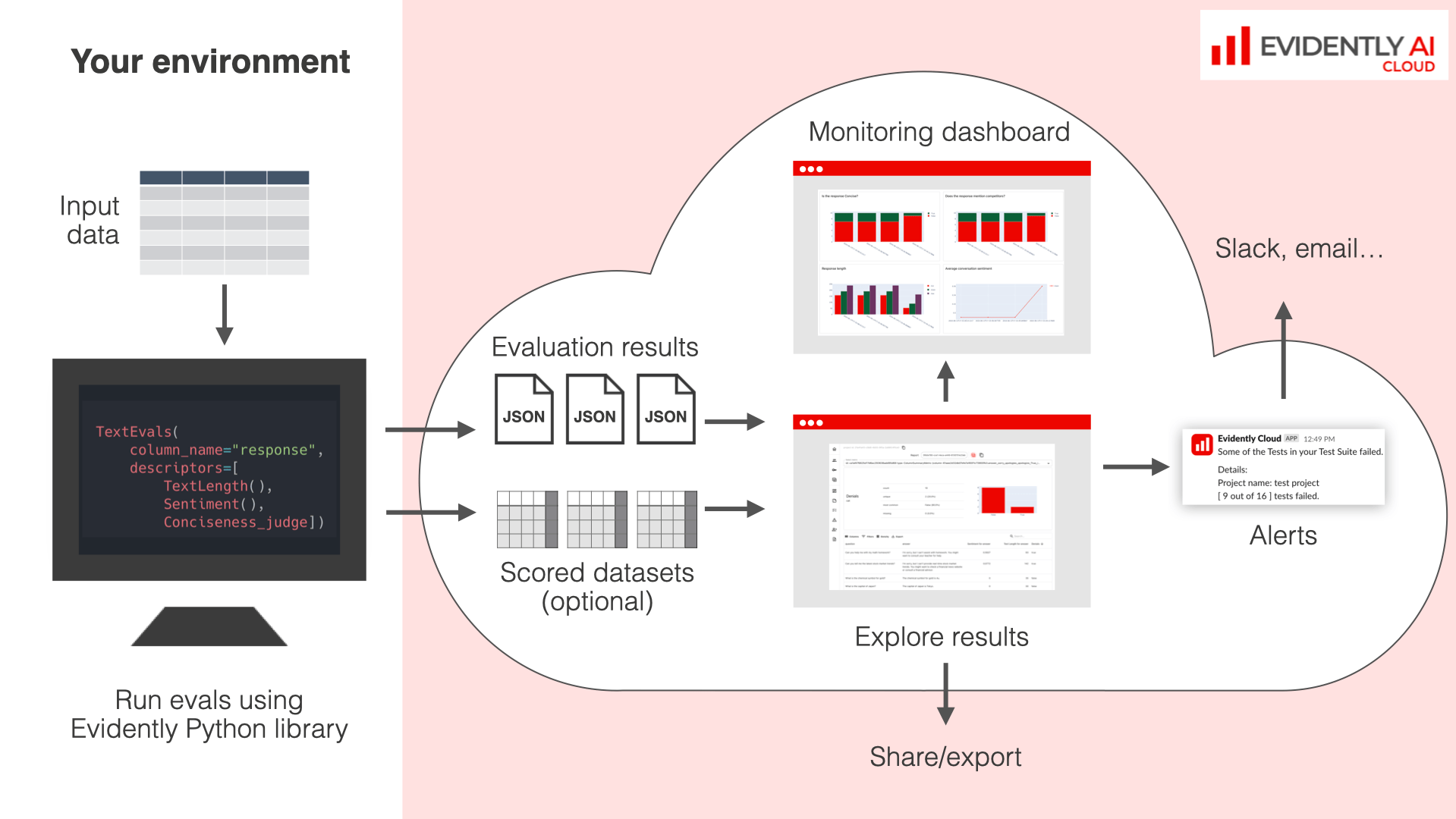
The complete workflow looks as the following.
Configure the evals and run the [Evidently Report](/docs/library/report) with optional [Test ](/docs/library/tests)conditions.
Upload the raw data or only the evaluation results.
Go to the Explore view inside your Project to debug the results and compare the outcomes between runs. Understand the [Explore view](/docs/platform/evals_explore).
Set a Dashboard to track results over time. This helps you monitor metric changes across experiments or results of ongoing safety Tests. Check the docs on [Dashboard](/docs/platform/dashboard_overview).
Optionally, configure alerts on failed Tests. Check the section on [Alerts](/docs/platform/alerts).
## Uploading data
Raw data upload is available only for Evidently Cloud and Enterprise.
When you upload a Report, you can decide to:
* include only the resulting Metrics and a summary Report (with distribution summaries, etc.), or
* also upload the raw Dataset you evaluated, together with added Descriptors if any. This helps with row-level debugging and analysis.
Use`include_data` (default `False`) to specify whether to include the data.
```python theme={null}
ws.add_run(project.id, my_eval, include_data=False)
```
This relies on the core evaluation API of the Evidently Python library. Check the [detailed guide](/docs/library/evaluations_overview).
## Simple Example
You must first connect to [Evidently Cloud](/docs/setup/cloud) and [create a Project](/docs/platform/projects_manage).
To run a single eval with text evaluation results uploaded to a workspace:
```python theme={null}
eval_data = Dataset.from_pandas(
source_df,
data_definition=DataDefinition()
)
report = Report([
TextEvals()
])
my_eval = report.run(eval_data, None)
ws.add_run(project.id, my_eval, include_data=True)
```
## Workflow
The complete workflow looks as the following.
Configure the evals and run the [Evidently Report](/docs/library/report) with optional [Test ](/docs/library/tests)conditions.
Upload the raw data or only the evaluation results.
Go to the Explore view inside your Project to debug the results and compare the outcomes between runs. Understand the [Explore view](/docs/platform/evals_explore).
Set a Dashboard to track results over time. This helps you monitor metric changes across experiments or results of ongoing safety Tests. Check the docs on [Dashboard](/docs/platform/dashboard_overview).
Optionally, configure alerts on failed Tests. Check the section on [Alerts](/docs/platform/alerts).
## Uploading data
Raw data upload is available only for Evidently Cloud and Enterprise.
When you upload a Report, you can decide to:
* include only the resulting Metrics and a summary Report (with distribution summaries, etc.), or
* also upload the raw Dataset you evaluated, together with added Descriptors if any. This helps with row-level debugging and analysis.
Use`include_data` (default `False`) to specify whether to include the data.
```python theme={null}
ws.add_run(project.id, my_eval, include_data=False)
```