> ## Documentation Index
> Fetch the complete documentation index at: https://docs.evidentlyai.com/llms.txt
> Use this file to discover all available pages before exploring further.
# Overview
> Introduction to Dashboard.
Dashboard is available in **Evidently OSS**, **Evidently Cloud** and **Evidently Enterprise**.
## What is a Dashboard?
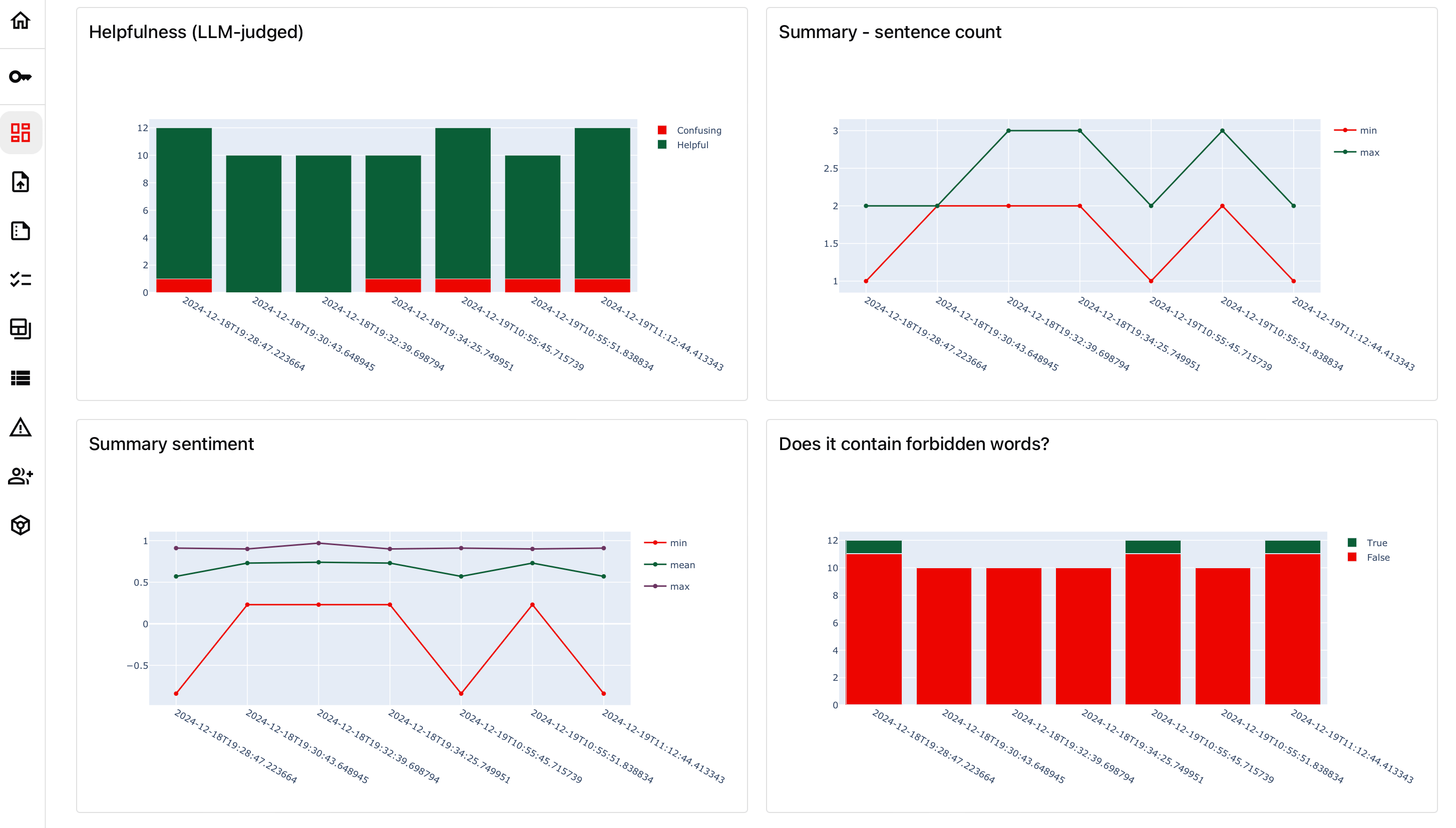
A Dashboard provides a clear view of your AI application performance. You can use it:
* to track evaluation results across multiple experiments;
* to track live production quality over time.
Each Project has its own Dashboard. It's empty at first.
To populate it, you need to run an evaluation and **save at least one Report** to the Project. You can then choose values from Reports to plot.
 ## Dashboard Tabs
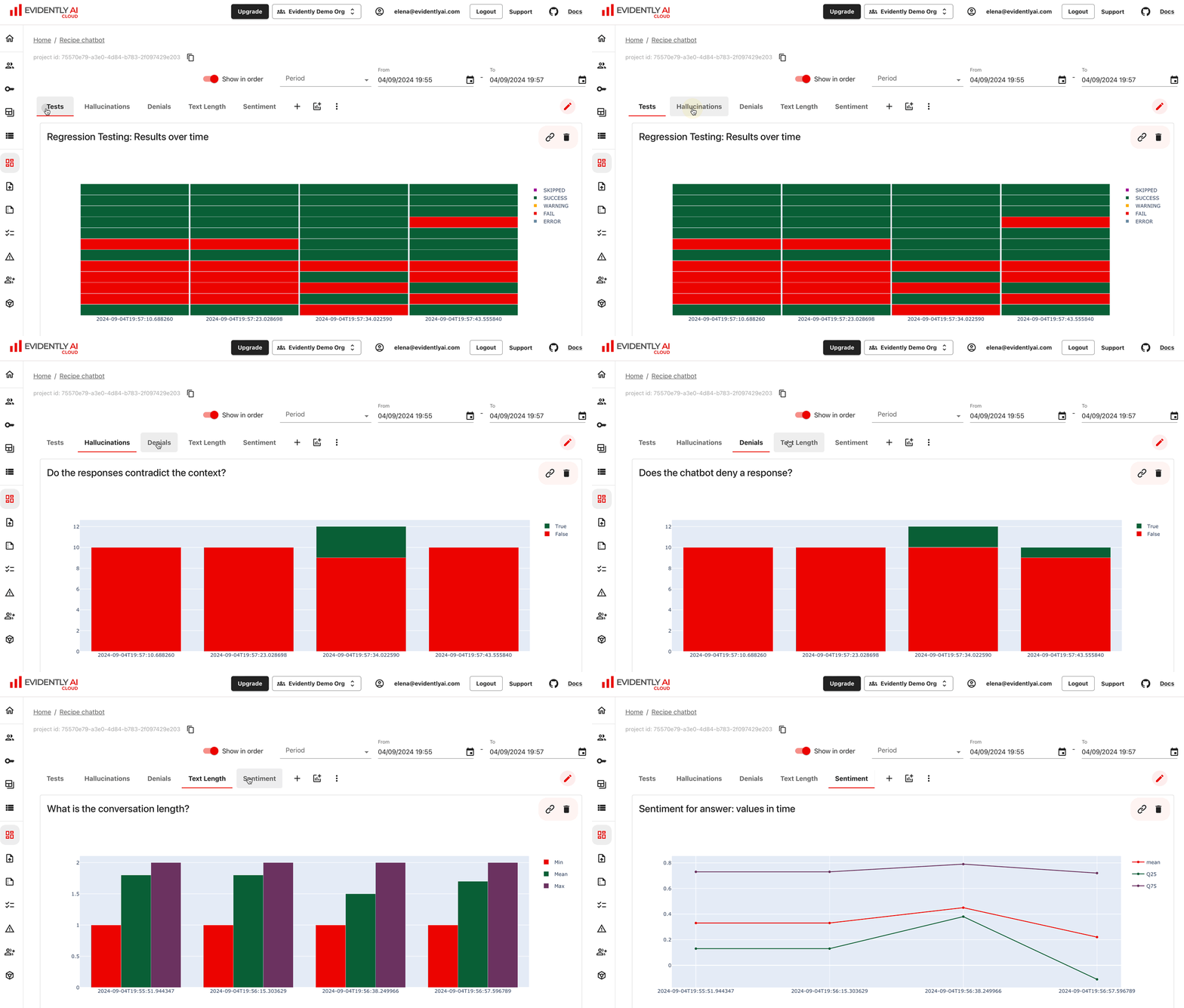
Multiple Tabs are available in **Evidently Cloud** and **Evidently Enterprise**.
You can logically organize Panels within the same Dashboard into different Tabs.
## Dashboard Tabs
Multiple Tabs are available in **Evidently Cloud** and **Evidently Enterprise**.
You can logically organize Panels within the same Dashboard into different Tabs.
 ## **Dashboard Panels**
A Panel is a visual element in the Dashboard that displays specified values in a single widget. Panels can be counters, line plots, bar plots, etc. You can add multiple Panels to the Dashboard and customize their type and values shown.
You can add Panels in two ways:
* Using the Python API – define your Dashboard as code.
* Through the UI – add Panels directly from the interface (Cloud and Enterprise only).
To create a Panel, you need to specify:
* Value – choose an individual metric to plot.
* Parameters – such as title, panel type, and size.
* Tags (optional) – use to filter and visualize subsets of your data.
## From Dashboard to Reports
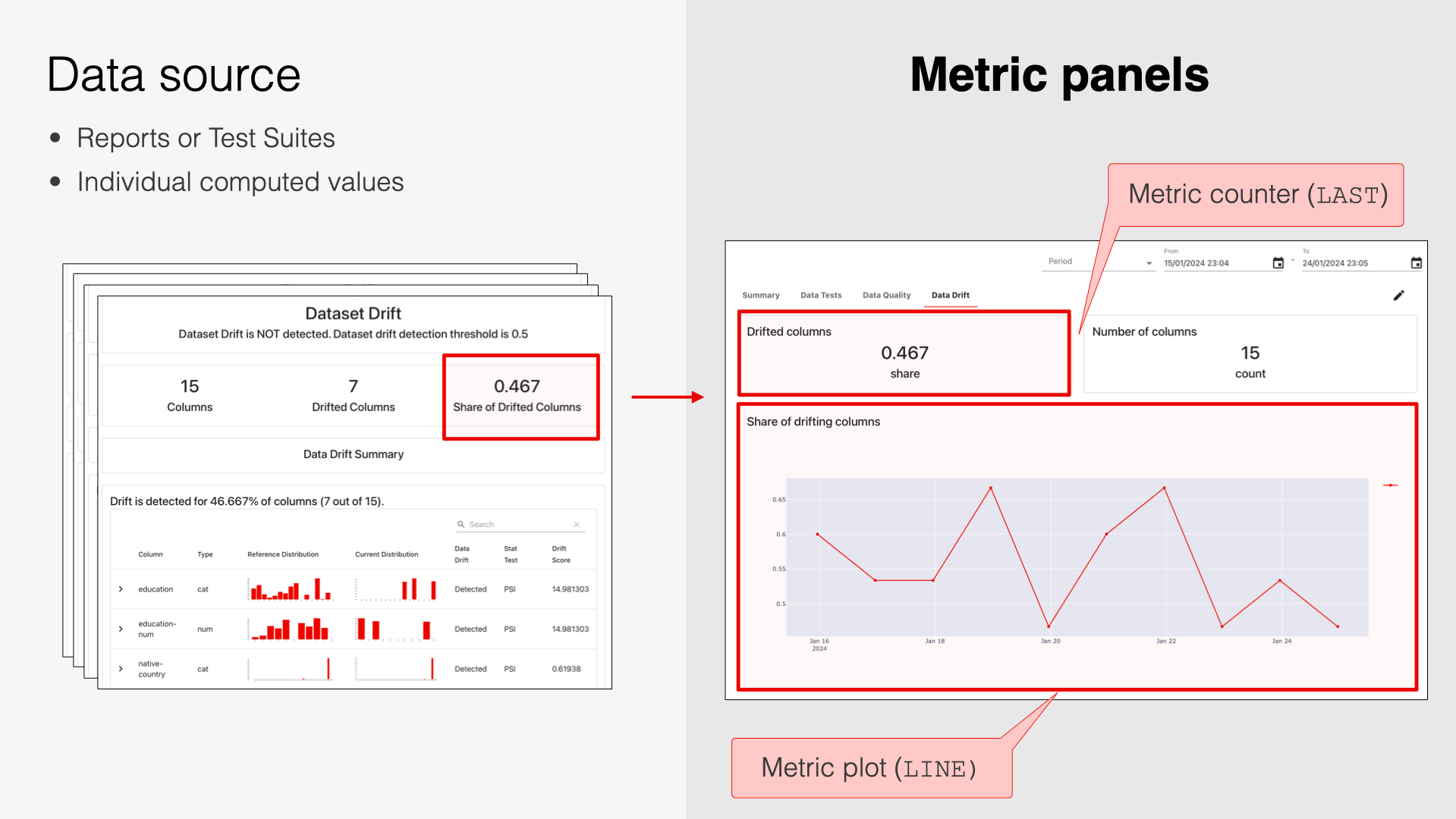
By clicking on any individual value on the Dashboard, you can open the associated Report and source Dataset for further debugging.
## **Dashboard Panels**
A Panel is a visual element in the Dashboard that displays specified values in a single widget. Panels can be counters, line plots, bar plots, etc. You can add multiple Panels to the Dashboard and customize their type and values shown.
You can add Panels in two ways:
* Using the Python API – define your Dashboard as code.
* Through the UI – add Panels directly from the interface (Cloud and Enterprise only).
To create a Panel, you need to specify:
* Value – choose an individual metric to plot.
* Parameters – such as title, panel type, and size.
* Tags (optional) – use to filter and visualize subsets of your data.
## From Dashboard to Reports
By clicking on any individual value on the Dashboard, you can open the associated Report and source Dataset for further debugging.
 ## Data source
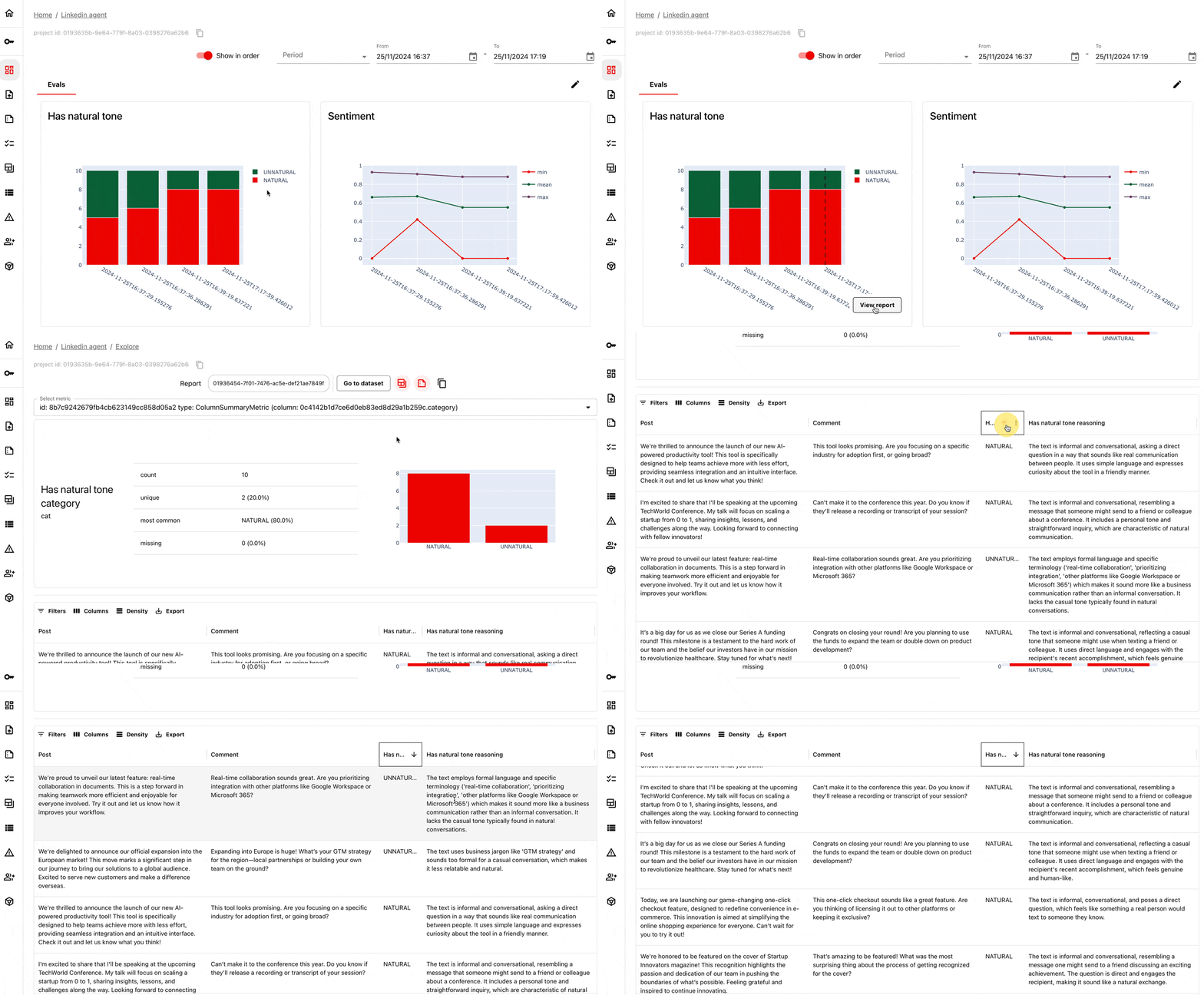
Dashboards rely on having **Reports** in the Project as a data source.
When adding a Panel, you select a **Metric**, and Evidently pulls the corresponding value(s) from all Reports in the Project to plot them.
For example, if you log multiple Data Drift Reports (each includes the`DriftedColumnsCount` for the corresponding batch), you can plot how this Metric value changes over time.
## Data source
Dashboards rely on having **Reports** in the Project as a data source.
When adding a Panel, you select a **Metric**, and Evidently pulls the corresponding value(s) from all Reports in the Project to plot them.
For example, if you log multiple Data Drift Reports (each includes the`DriftedColumnsCount` for the corresponding batch), you can plot how this Metric value changes over time.
 The Panel time resolution depends on logged Report frequency. For instance, if you log Reports daily, you'll see values at daily granularity.
You can use **Tags** to filter data from specific Reports. For example, you can plot the accuracy of Model A and Model B on separate Panels. To achieve this, you must first [add relevant Tags](/docs/library/tags_metadata) to the Report, and then filter by these Tags when creating a Panel.
## What’s next?
* See how to [customize dashboard via API](/docs/platform/dashboard_add_panels).
* See how to [customize dashboard via UI](/docs/platform/dashboard_add_panels_ui).
The Panel time resolution depends on logged Report frequency. For instance, if you log Reports daily, you'll see values at daily granularity.
You can use **Tags** to filter data from specific Reports. For example, you can plot the accuracy of Model A and Model B on separate Panels. To achieve this, you must first [add relevant Tags](/docs/library/tags_metadata) to the Report, and then filter by these Tags when creating a Panel.
## What’s next?
* See how to [customize dashboard via API](/docs/platform/dashboard_add_panels).
* See how to [customize dashboard via UI](/docs/platform/dashboard_add_panels_ui).