> ## Documentation Index
> Fetch the complete documentation index at: https://docs.evidentlyai.com/llms.txt
> Use this file to discover all available pages before exploring further.
# Alerts
> How to set up alerts.
Built-in alerting is a Pro feature available in the **Evidently Cloud** and **Evidently Enterprise**.
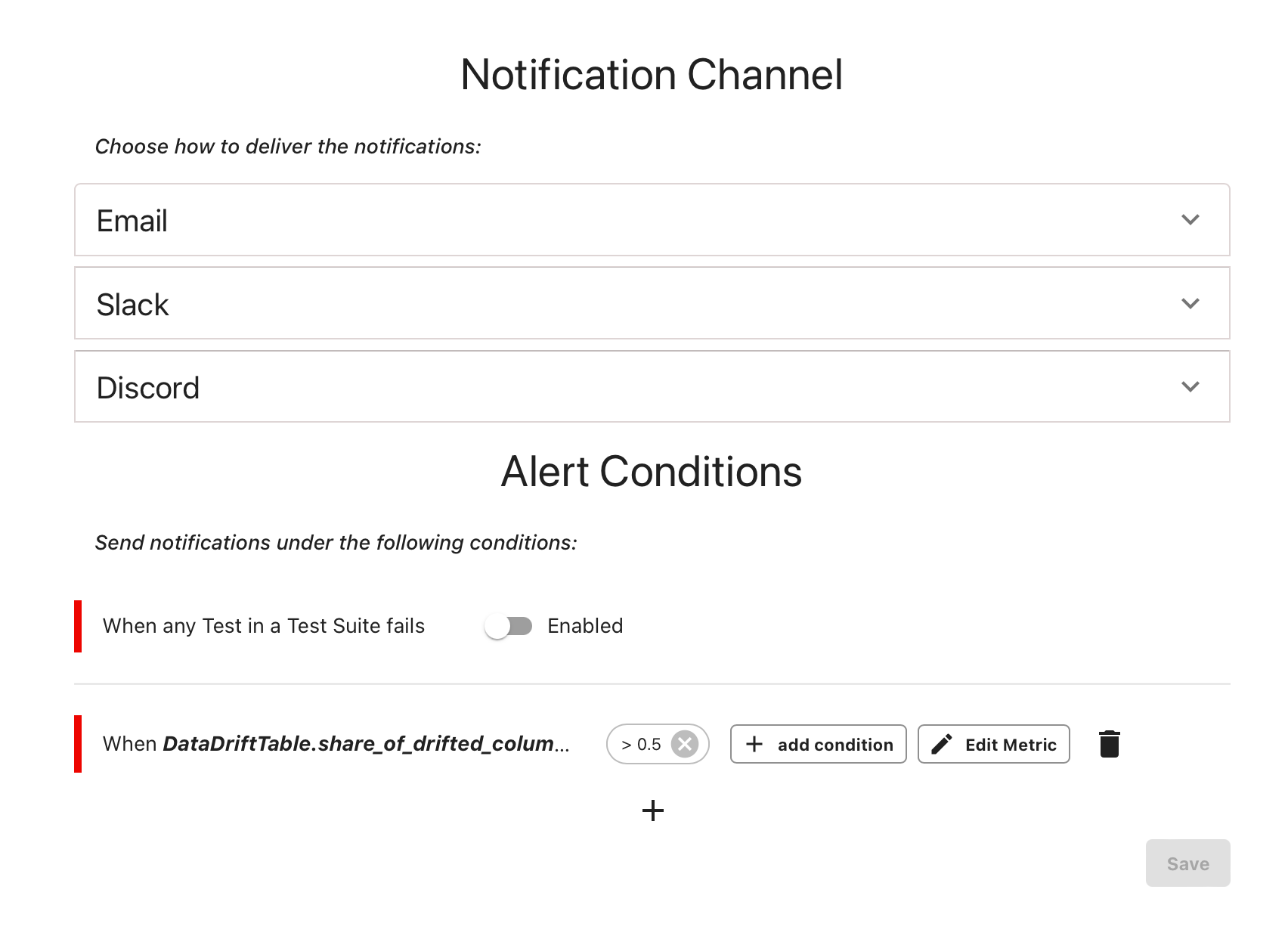 To enable alerts, open the Project and navigate to the "Alerts" in the left menu. You must set:
* A notification channel.
* An alert condition.
## Notification channels
You can choose between the following options:
* **Email**. Add email addresses to send alerts to.
* **Slack**. Add a Slack webhook.
* **Discord**. Add a Discord webhook.
## Alert conditions
### Failed tests
If you use Tests (conditional checks) in your Project, you can tie alerting to the failed Tests in a Test Suite. Toggle this option on the Alerts page. Evidently will set an alert to the defined channel if any of the Tests fail.
**How to avoid alert fatigue?** Use the `is_critical` parameter to mark non-critical Test as Warnings. Setting it to `False` prevent alerts for those checks even if they fail.
### Custom conditions
You can also set alerts on individual Metric values. For example, you can generate Alerts when the share of drifting features is above a certain threshold.
Click on the plus sign below the “Add new Metric alert” and follow the prompts to set an alert condition.
To enable alerts, open the Project and navigate to the "Alerts" in the left menu. You must set:
* A notification channel.
* An alert condition.
## Notification channels
You can choose between the following options:
* **Email**. Add email addresses to send alerts to.
* **Slack**. Add a Slack webhook.
* **Discord**. Add a Discord webhook.
## Alert conditions
### Failed tests
If you use Tests (conditional checks) in your Project, you can tie alerting to the failed Tests in a Test Suite. Toggle this option on the Alerts page. Evidently will set an alert to the defined channel if any of the Tests fail.
**How to avoid alert fatigue?** Use the `is_critical` parameter to mark non-critical Test as Warnings. Setting it to `False` prevent alerts for those checks even if they fail.
### Custom conditions
You can also set alerts on individual Metric values. For example, you can generate Alerts when the share of drifting features is above a certain threshold.
Click on the plus sign below the “Add new Metric alert” and follow the prompts to set an alert condition.
